Power Up Your OneNote Workflow with Keyboard Shortcuts
February 25, 2026
We're excited to announce a game-changing feature that will transform how you use Onetastic: Customizable Keyboard Shortcuts. This powerful addition lets you assign your own keyboard combinations to your favorite Onetastic features, making them instantly accessible without touching your mouse. Whether you're running macros, applying custom styles, navigating between your favorites, or using image utilities, you can now access everything at lightning speed.
Why Keyboard Shortcuts?
If you're like most Onetastic users, you probably have a handful of features you use constantly—maybe it's your
Search & Replace macro, your
favorite heading style, or the
image rotation tools. Until now, accessing these required navigating through menus or ribbons. With keyboard shortcuts, you can invoke any Onetastic feature with a single key combination.
But here's what makes this feature truly special: intelligent conflict handling. Onetastic's shortcut system works seamlessly alongside OneNote's built-in shortcuts, giving you complete control over how they interact.
Getting Started
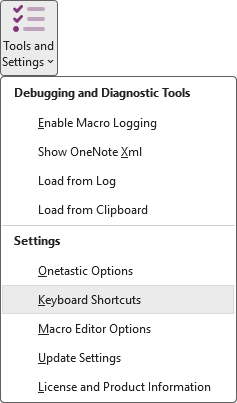
To configure your shortcuts, open the Onetastic Options dialog via
Tools and Settings >
Keyboard Shortcuts in the Home ribbon tab.
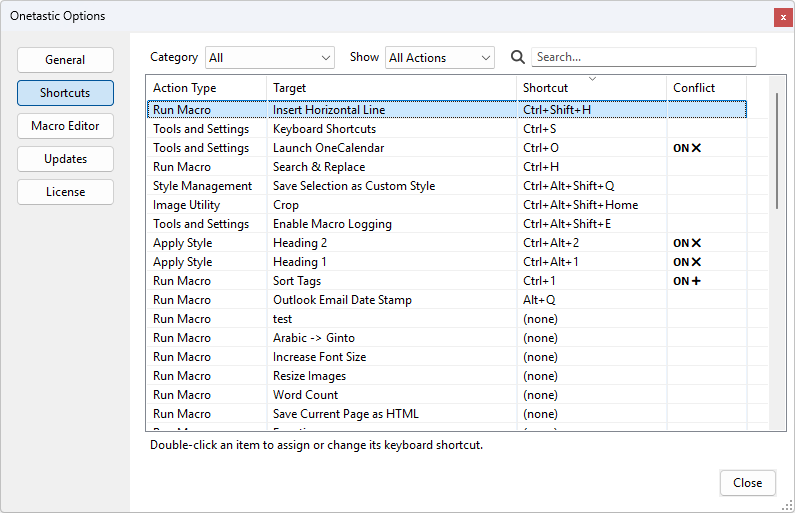
You'll see a comprehensive list of all available Onetastic features that can be assigned shortcuts, organized by category:
- Macros: All your installed macros, plus macro management commands
- Custom Styles: Your custom text styles and style management tools
- Favorites: Your favorite pages and favorite management
- Image Utilities: Quick access to image rotation, cropping, and OCR tools
- Tools and Settings: OneCalendar, batch import, and other utilities
Setting Up a Shortcut
Assigning a shortcut is incredibly simple:
- Find the action you want in the list (use the search box or category filters to narrow it down)
- Double-click the action, or select it and press Enter
- In the Key Capture dialog, press the key combination you want to use
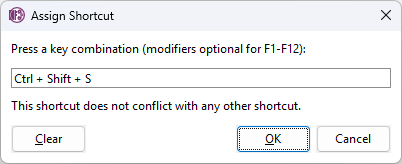
The Key Capture dialog shows you exactly what you're entering and instantly alerts you if there's any conflict with existing shortcuts. You can use:
- Modifier combinations: Ctrl, Alt, Shift, or any combination (e.g., Ctrl + Alt + S)
- Function keys: F1 through F12, with or without modifiers
- Letter, number, and symbol keys: With at least one modifier key
For example, let's say you frequently use a "Search & Replace" macro. You could assign it Ctrl + H, the same shortcut that many text editors use for find and replace.
Understanding Shortcut Scope
Here's an important detail:
Onetastic shortcuts are local to OneNote. They only work when OneNote has focus and won't interfere with other applications.
If you assign Ctrl+H to your Search & Replace macro, it will work perfectly in OneNote, but when you switch to Notepad or Word, their Ctrl+H shortcuts will work just as they always have. You don't need to worry about Onetastic shortcuts taking over your entire system. This gives you the freedom to use familiar key combinations without any conflicts outside of OneNote.
Smart Conflict Detection
When you assign a shortcut, Onetastic immediately checks for conflicts with:
- Other Onetastic shortcuts: Prevents accidentally assigning the same shortcut to two different actions
- OneNote's built-in shortcuts: The system knows all of OneNote's native keyboard shortcuts
If there's a conflict, you'll see it right in the interface:
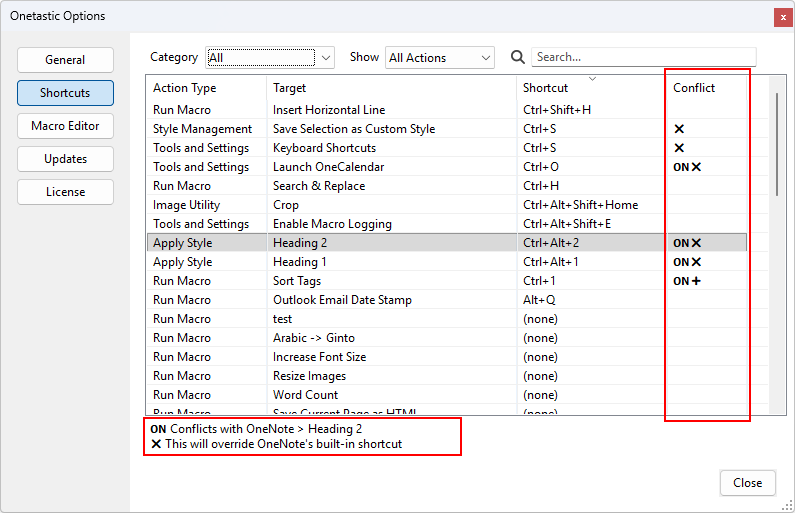
The Conflict column uses visual indicators:
 : Conflicts with a OneNote built-in shortcut and will override it
 : Conflicts with a OneNote shortcut but will execute after OneNote's action
 : Conflicts with another Onetastic shortcut
Override or Augment: Your Choice
Here's where things get really interesting. When your shortcut conflicts with a OneNote built-in shortcut, Onetastic gives you two options:
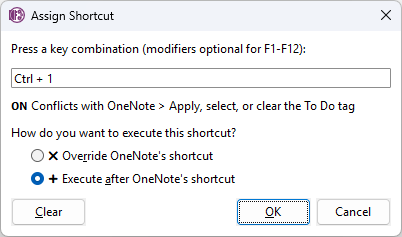
- Override OneNote's shortcut: Your Onetastic action completely replaces OneNote's behavior for this key combination. For example, if you prefer your custom numbering macro over OneNote's Ctrl+1 tag shortcut, you can override it.
- Execute after OneNote's shortcut: Both actions happen in sequence—OneNote's action first, then your Onetastic action. This is perfect when you want to build on top of OneNote's functionality. For instance, you could create a macro that runs after OneNote applies a tag, adding your own custom processing.
This level of control means you're never locked into OneNote's defaults, but you also never lose functionality if you don't want to.
Powerful Organization Features
Managing shortcuts for dozens of actions is easy thanks to built-in organization tools:
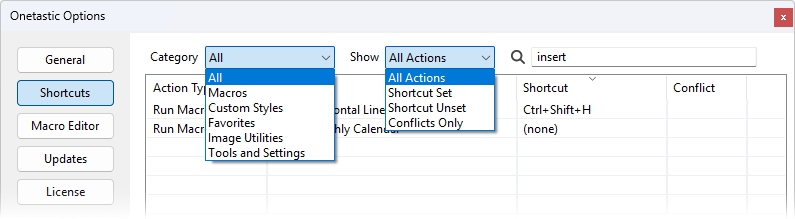
Filtering
- Category filter: View only macros, styles, favorites, image utilities, or tools
- Show filter: See all actions, only those with shortcuts assigned, only those without shortcuts, or only conflicting shortcuts
- Search: Instantly find any action by typing part of its name
Sorting
Click any column header to sort by:
- Action Type: Group all macros together, all styles together, etc.
- Target: Alphabetically by action name
- Shortcut: See which key combinations you've used
- Conflict: Quickly identify any conflicts that need resolution
The interface remembers your preferences—your selected filters, search terms, column sort order, and even window position—so everything is exactly how you left it the next time you open the dialog.
Quick Tips for Effective Shortcuts
Here are some suggestions for getting the most out of this feature:
- Use mnemonic shortcuts: Choose key combinations that match the action (e.g., Ctrl+Alt+H for Insert Horizontal Line)
- Reserve Ctrl+Alt combinations for your most-used features: These are generally unused by OneNote and easy to remember
- Don't be afraid to override: If you never use OneNote's Ctrl+1 through Ctrl+6 tag shortcuts, those are prime real estate for your macros
- Group related actions: Assign sequential shortcuts to related macros (like Ctrl+Alt+1, Ctrl+Alt+2, Ctrl+Alt+3 for different formatting macros)
- Use function keys for quick access: F2-F12 are mostly available and perfect for frequently-used actions
- Check the Conflicts Only filter: Periodically review this to ensure you're comfortable with all your overrides
Real-World Examples
To give you some inspiration, here are some practical shortcut configurations:
- Ctrl+H: Search & Replace macro
- Ctrl+Alt+T: Table of Contents macro
- Ctrl+Shift+F: Apply your favorite heading style
- Ctrl+Alt+R: Rotate image right 90°
- F5: Insert Monthly Calendar macro
- Ctrl+Alt+C: Crop image
- Ctrl+Alt+M: Manage Macros dialog
- Ctrl+Shift+S: Save Selection as Custom Style
A Productivity Game-Changer
This feature represents a major step forward in making Onetastic an integral part of your OneNote workflow. Instead of breaking your concentration to hunt through menus, you can keep your hands on the keyboard and your mind on your work.
The combination of customizability, conflict detection, and intelligent handling of OneNote's built-in shortcuts makes this one of the most powerful productivity features we've ever added to Onetastic. We can't wait to see how you use it!
Try It Today
Keyboard shortcuts are available in Onetastic version 8 and are available to active Pro and Dev license users. If you haven't updated recently, head over to the Onetastic Options dialog and check for updates, or download the latest version from the
download page.
Set up your first few shortcuts today, and within a week, you'll wonder how you ever lived without them. Happy shortcut-ing! If you have questions about keyboard shortcuts or suggestions for improvements, join the discussion below or reach us out via email.
Comments