Enhanced Macro Menus and Markdown Import
June 27, 2026
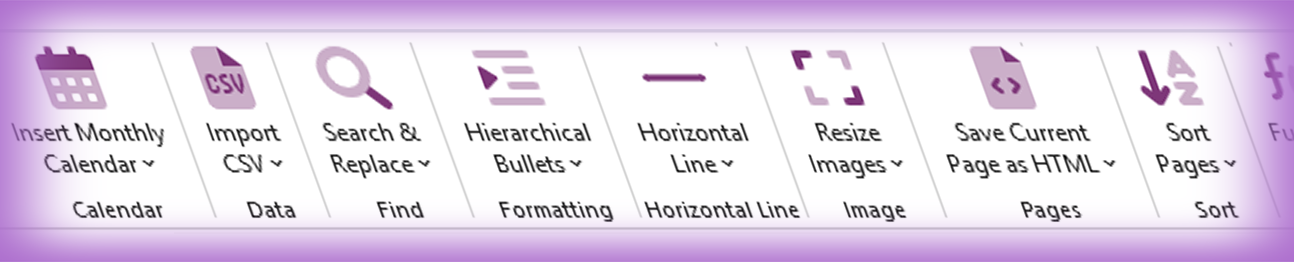
Macro menus are a cornerstone of the Onetastic experience. They give you quick access to preset options, recent items, and settings without having to open a dialog every time. With this update, we have completely redesigned macro menus to support organized sections, making them cleaner, more intuitive, and more powerful for both macro users and macro developers.
Organized Sections Instead of Flat Lists
Previously, macro menus displayed everything in a single flat list. If a macro wanted to show both preset options and recently used values, they all appeared in one long menu with no clear separation. Now macros can organize their menu items into distinct sections:
- Recent: Recently used values, search terms, or recent actions
- Presets: Pre-configured options and quick-access choices
- Settings: Configuration options like changing colors or display preferences
- Manage: Built-in section for renaming the macro, changing its icon, assigning keyboard shortcuts, and editing
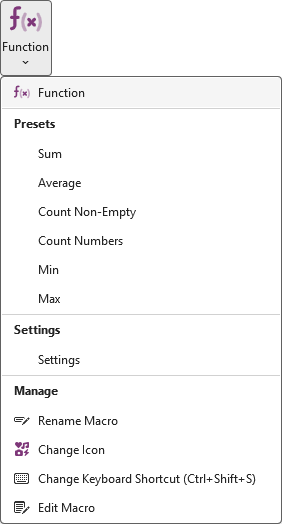
Each section is clearly labeled and separated, so you can immediately find what you need. If a macro doesn't use a particular section, it simply won't appear in the menu. This keeps menus clean and focused.
Real-World Examples
Let's look at how this improves some popular macros.
Horizontal Line Macro
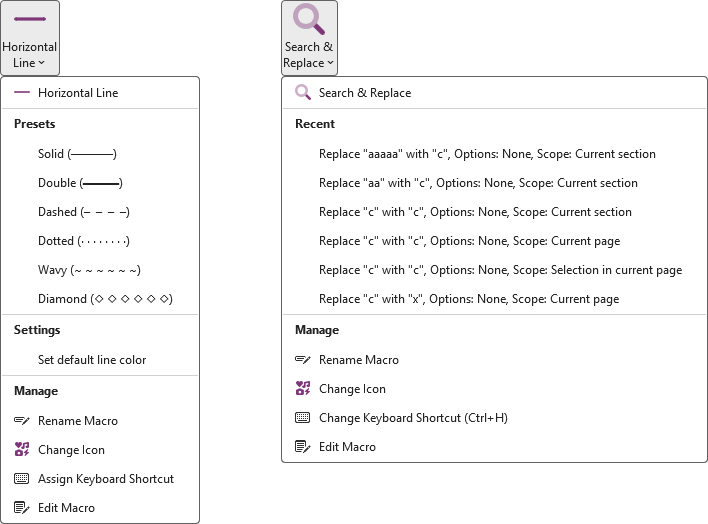
The Horizontal Line macro uses Presets to show different line styles (solid, double, dashed, dotted, wavy, diamond), and a Settings section to configure the default line color. Everything is organized so you can quickly pick a preset line style or adjust the settings.
Search and Replace Macro
The Search and Replace macro shows your recently used search and replace operations in the Recent section. Each recent item includes the search term, replacement text, and the scope where you used it (current section, current page, or selection). This makes it incredibly fast to repeat a recent search without typing everything again.
All Macro Management in One Place
Every macro with a menu now includes the Manage section at the bottom. This section is automatically added and always contains the same core actions:
- Rename Macro: Give the macro a name that makes sense for your workflow
- Change Icon: Pick an icon that helps you spot the macro quickly in the ribbon
- Assign Keyboard Shortcut: Set up a key combination for instant access
- Edit Macro: Open the macro editor to view or modify the code
These options were always available, but they were scattered across different dialogs and menus. Now they're consolidated in one convenient location. Whether you want to rename a macro, change its icon, or assign a keyboard shortcut, you can do it all from the same menu without hunting through multiple dialogs.
For Macro Developers: Simple to Implement
If you develop your own macros, adding sections is straightforward. The MacroMenu_AddItem function now accepts an optional fifth parameter to specify the section:
Copied!
function Setup(byref $menu)
MacroMenu_AddItem($menu, "search1", "Recent Search 1", "Last used search term", "Recent")
MacroMenu_AddItem($menu, "preset1", "Preset 1", "A preset option")
MacroMenu_AddItem($menu, "colors", "Change Colors", "Customize display colors", "Settings")
The available section names are "Recent", "Presets", and "Settings". If you don't specify a section (or use "Presets"), the item goes into the Presets section by default. Empty sections are automatically hidden, so you only add items to the sections your macro actually uses.
Full documentation is available on the Macro menus page in our documentation.
Markdown Support in Batch File Import
Batch File Import just got smarter. In addition to importing Word documents, PowerPoint presentations, PDFs, and images, you can now import Markdown (.md and .markdown) files directly into OneNote with full formatting preserved.
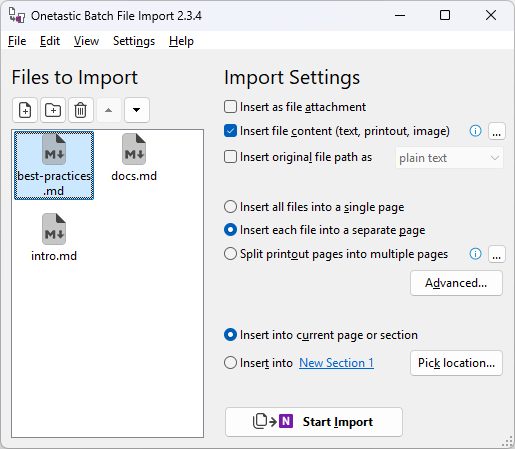
When you import a Markdown file, Batch File Import automatically converts it to rich OneNote content using GitHub Flavored Markdown. This means you get all the standard Markdown features plus several popular extensions:
Core Markdown Features
- Headings (all six levels, # through ######) become properly styled OneNote headings
- Bold (
**text**), italic (*text*), and bold italic (***text***) formatting is preserved - Ordered and unordered lists render correctly, including nested lists
- Links remain clickable in OneNote
- Images are embedded (relative paths are resolved from the markdown file location)
- Code blocks with triple backticks (
```) are formatted as monospace text - Inline code (
code) is formatted distinctly - Blockquotes (starting with
>) are properly indented
GitHub Flavored Markdown Extensions
- Tables with column alignment (
:---, :---:, ---:) - Strikethrough (
~~text~~) - Autolinks where URLs like www.example.com and email addresses become clickable automatically
This is perfect for developers and technical users who keep documentation and notes in Markdown format. Whether you're importing project READMEs, meeting notes, or documentation files, Markdown support makes the transition seamless. Your carefully formatted documentation appears in OneNote exactly as you wrote it.
To import Markdown files, simply add .md or .markdown files to your import list in Batch File Import. The tool detects the file type and handles the conversion automatically.
Sharper Display When Moving Between Monitors
This update includes improvements to how Onetastic, OneCalendar, and Batch File Import render on high-resolution displays. If you use multiple monitors with different resolutions (for example, a 4K external monitor alongside a laptop screen), you may have noticed that windows can look blurry when moved from one monitor to another.
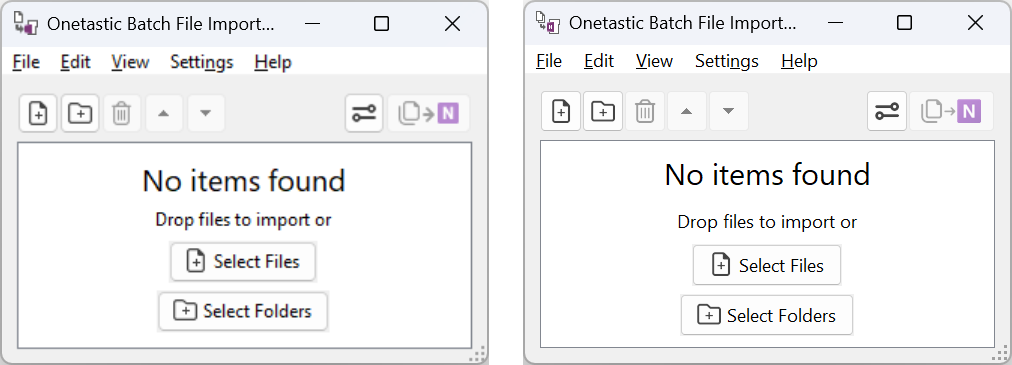
Now all three applications automatically detect when you move a window to a different monitor and re-render the interface to match the new display's characteristics. This ensures text, icons, and controls always appear sharp and clear, no matter where you position the window.
This change happens seamlessly in the background. You won't notice anything except that the interface stays crisp and readable across all your screens.
Try the New Features Today
All three of these improvements are available now in the latest Onetastic update. Open a macro menu to see the new sections in action, try importing a Markdown file with Batch File Import, or drag a window between monitors to see the automatic display adjustments.
As always, if you have questions or suggestions for future improvements, join the discussion below or reach us out via email.
Comments